

By Gaurav Sharma | Founder & Lead Writer
Last Updated: September 24, 2026
Vision Care Notice: The ergonomic habits, display adjustments, and everyday tips in this guide are provided solely for general educational purposes. Digital eye strain is typically a temporary comfort issue related to how we interact with screens. If you experience persistent eye pain, sudden changes in vision, halos around lights, or new flashes and floaters, consult an eye care professional or physician promptly for a comprehensive evaluation.
Whether it is catching up with family on a video call, reading the morning news on a tablet, or checking bills on a home computer, digital screens are part of everyday modern retirement. But if your eyes often feel dry, heavy, gritty, or slow to refocus after spending time on your phone, you are certainly not alone.
Finding practical ways to manage screen eye strain for seniors has become a very common household need. After age 60, our eyes go through subtle, normal changes: the natural lens inside the eye becomes slightly less flexible, making close-up reading work harder, and the tear film that keeps your eyes comfortable tends to dry out more quickly.
The reassuring news is that digital eye strain itself is generally temporary. It is usually just your eye muscles telling you they have been working in one position for too long without enough lubrication. By making a few simple, zero-cost adjustments to your screen settings, reading distance, and room lighting, you can make your daily screen time feel much more comfortable.
Why Digital Displays Feel More Tiring
When you sit down with a printed book or newspaper, room light bounces evenly off the paper, and your eyes blink naturally without you ever having to think about it.
According to guidance from the American Academy of Ophthalmology (AAO), adults normally blink around 15 times every minute. But studies cited by the AAO show that when we focus on digital screens, our blink rate often drops down to just 5 to 7 times per minute. Because blinking is what spreads fresh tears across the front of your eye, cutting your blinks in half causes that protective moisture layer to evaporate quickly. That is why your eyes end up feeling scratchy or dry.
Add in small fonts, harsh screen glare, and a bright screen in a dim room, and your focusing system tires out fast. The good news is that you do not need medications or complicated gear to find relief—a few everyday habits can help right away.
6 Everyday Adjustments for Better Screen Comfort
1. Follow the 20-20-20 Rest Habit

Keeping your eyes locked onto a single, close-up reading distance for hours at a time tires out the tiny focusing muscles inside your eyes.
To give those muscles an easy reset, eye health organizations recommend the 20-20-20 routine:
- Every 20 minutes: Pause from your screen.
- Look at least 20 feet away: Glance out a window, down a hallway, or across the room.
- Hold for 20 seconds: Keep your focus on that distant spot for about twenty seconds before looking back at your device.
This brief pause lets your focusing muscles relax completely and naturally triggers a few full blinks. Making it a habit to look up at the end of every news article or puzzle game is an easy way to remember.
2. Increase Text Size and Contrast
Leaning forward in your chair or squinting to read small text puts unnecessary strain on both your eyes and your neck muscles. You never have to settle for default factory text sizes.
- Make Words Larger: Open your phone or tablet’s Settings > Display (or Accessibility) and slide the text size up until you can read comfortably while sitting all the way back in your chair.
- Keep High Contrast: Clean, dark lettering against a soft off-white or light-gray background is generally the most comfortable to read. Avoid reading low-contrast light gray text on white backgrounds.
- Use Built-In Reader Tools: Most web browsers feature a simple “Reader Mode” icon near the address bar. Tapping it strips out flashing side banners and ads, leaving only clean, enlarged body text.
Also Read:7 Costco Perks for Seniors Over 60 You May Not Be Using
(Check out Section 2 for member optical savings and standard anti-reflective lens features)
3. Balance Screen Brightness with Room Lighting
Reading a screen that shines like a bright lantern in a dark room—or trying to read a dim screen sitting right next to a sunny window—creates visual harshness that tires your eyes.
- Match Your Surroundings: Adjust your display brightness slider so the screen roughly matches the light level of the room you are in. If the screen looks like a glaring spotlight, dim it down. If it looks dull and hard to see, raise the brightness slightly.
- Try Warmer Color Modes: Most modern phones, tablets, and computers include a display setting called “Night Shift,” “Eye Comfort Shield,” or “Night Light.” Turning this on softens the bright blue tone of the screen to a warm amber, which many people find much easier on the eyes in the evening.
Also Read-: Best Walking Shoes for Seniors With Balance Problems: 5 Stable Picks
4. Check Your Screen Distance and Viewing Angle
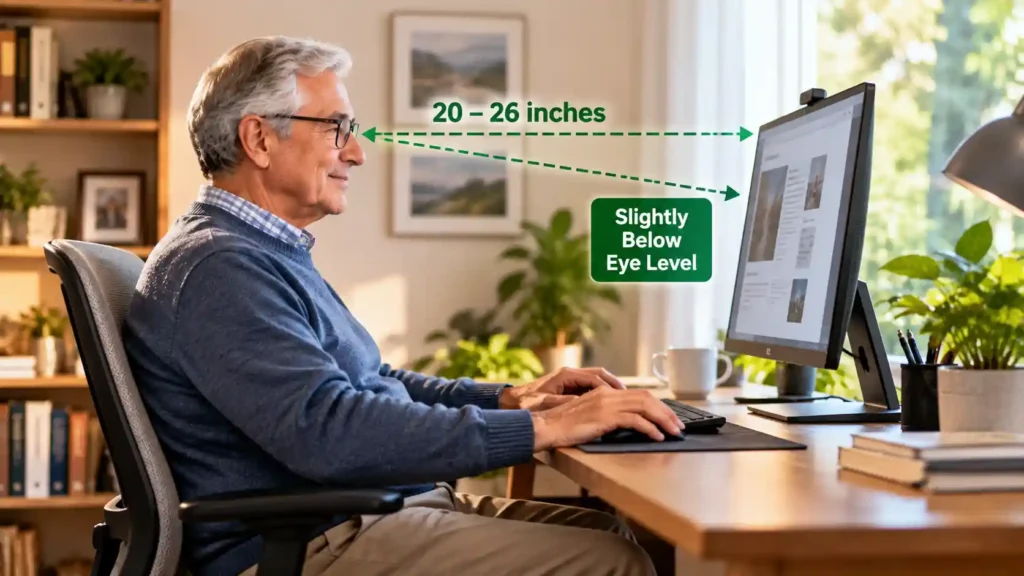
How close you hold your device plays a major role in how hard your eyes have to work to keep things in focus.
- Computer Distance: For a desktop monitor or laptop, health guidelines generally recommend positioning the screen roughly 20 to 26 inches away from your face (about an arm’s length for most desks).
- Look Slightly Downward: Set your monitor so your gaze is angled slightly down, rather than straight ahead or tilted upward. When you look down, your eyelids naturally cover more of your eye’s surface, which slows down tear evaporation.
- Mobile Devices: Try not to hold your phone close to your chest or chin. Resting your forearms on chair armrests or using a firm lap pillow makes it easy to keep the screen at a relaxed, comfortable mid-distance.
5. Soften Glare from Windows and Lamps
Light bouncing off a glossy glass screen creates visual glare that forces your eyes to work twice as hard to read text.
- Reposition Your Chair: Try not to sit with an unshaded window directly behind you (which throws reflections on the glass) or directly in front of you (which washes out the screen).
- Choose Soft Side Lighting: Diffused light from a shaded table lamp to the side is usually much gentler on the eyes than bare overhead light fixtures.
- Matte Screen Protectors: If your favorite reading chair sits near a sunny window that you cannot easily rearrange, an inexpensive matte screen protector can help diffuse reflections without blurring the display.
6. Remember the “Full Blink” Habit
Because our blink rate drops so sharply when we look at screens, making a conscious habit of full, complete blinks helps keep your eyes naturally lubricated.
- The Soft Pause: Every few paragraphs or between tasks, close your eyes softly for a couple of seconds, pause, and open them slowly. This lets your eyelids meet fully, spreading a fresh, even layer of moisture.
- Watch Out for Air Drafts: Ceiling fans spinning overhead, portable heaters, or air conditioning vents blowing toward your face can dry out your eyes quickly when reading. Try angling nearby vents away from your favorite chair.
Also Read-: How to Sleep Cooler at Night for Seniors: 7 Practical Tips
Quick Screen Comfort Reference
| Focus Area | Practical Goal | Easy Action |
| Blink Frequency | Keep eyes naturally moist | Pause to close eyes completely; follow the 20-20-20 habit. |
| Screen Distance | Prevent near-focus fatigue | Keep monitors roughly 20–26 inches away; tilt gaze slightly downward. |
| Room Lighting | Avoid harsh reflections and glare | Use shaded side lamps; angle screens away from direct windows. |
| Text Legibility | Read comfortably without leaning | Increase font size in settings; use browser reader mode. |
| Display Brightness | Blend screen with surroundings | Match brightness slider to room light; use warmer evening modes. |
Do You Need Blue Light Glasses?
You have likely seen plenty of advertisements claiming that specialized blue-light-filtering glasses are essential to protect your eyes from screens.
However, the American Academy of Ophthalmology notes that digital eye strain is primarily caused by how we use our screens—staring at close distances for long periods, reduced blinking, and glare—rather than the blue light coming from the screens themselves. Because of this, clinical guidelines do not consider blue-blocking lenses a medical requirement for screen comfort.
If you wear progressive or bifocal lenses, you might find yourself tilting your head back awkwardly to read a computer monitor through the bottom reading portion of your lenses. If that is happening, talking with your eye doctor about dedicated computer-distance lenses can make a noticeable difference in both eye comfort and neck posture.
Frequently Asked Questions
Is digital eye strain permanent?
Digital eye strain itself is generally temporary. It is a functional fatigue and surface dryness issue rather than an eye disease that causes lasting damage. Giving your eyes regular breaks and adjusting your screen habits typically clears up the discomfort.
Why do screens make my eyes feel dry so quickly?
When we focus on digital screens, our blink rate drops by more than half. Because blinking is what spreads fresh tears across the eye, fewer blinks allow that moisture layer to evaporate faster, leading to a gritty or dry feeling.
When should I see an eye doctor about eye fatigue?
While mild tiredness after a long stretch of reading is common, you should schedule a visit if you have ongoing eye pain, sudden changes in vision, double vision, halos around lights, or new floaters and flashes. Routine comprehensive eye exams remain the best way to safeguard your overall eye health as you age.
Sources & References
- American Academy of Ophthalmology (AAO):Computers, Digital Devices, and Eye Strain — Clinical guidance on blink rates, viewing distances, and everyday screen habits.
- American Academy of Ophthalmology (AAO):Are Blue Light-Blocking Glasses Worth It? — Educational overview of screen light, sleep quality, and the real causes of digital fatigue.
- CDC Vision Health Initiative:Preventing Vision Loss & Everyday Eye Health Tips — Public health recommendations on comprehensive eye exams and the 20-20-20 rest habit.
Educational only — not medical, legal, or financial advice. Talk to a qualified professional before changing exercise, diet, medication, or making a major purchase. After60Guide is not a medical practice.




Gaurav Sharma is the founder and lead writer of After60Guide. He writes practical, source-cited guides on movement, nutrition, home safety, and everyday living after 60. He is not a doctor, physical therapist, or financial adviser. Health and money articles are general education, checked against official public sources where relevant — not personal advice. Corrections: contact@after60guide.com