

Written By Gaurav Sharma
Fact-checked against official Apple documentation and senior digital literacy programs | Last updated: August 2026
Owning a modern iPhone, iPad, or Apple Watch offers tremendous convenience for older adults. From connecting face-to-face with family on FaceTime to accessing doctor portals and tracking daily medications, these devices are powerful tools for staying independent.
However, touchscreens, gestures, and frequent software updates can also feel overwhelming. Small text, unfamiliar icon menus, and concerns about accidental taps leave many older adults hesitant to explore their devices fully.
Whenever I talk with older adults navigating modern smartphones, the biggest hesitation isn’t a lack of interest—it’s the fear of pressing the wrong button. The good news is you don’t have to rely solely on busy family members to figure things out.
Here is your complete guide to finding free Apple classes for seniors, how to book them, and the most practical settings to set up today.
Table of Contents
- 1. "Today at Apple" Free In-Store Sessions
- 2. Senior Planet from AARP (Virtual & In-Person)
- 3. Public Libraries and Community Centers
- 4. Osher Lifelong Learning Institutes (OLLI)
- Top 5 Essential Apple Features Every Senior Should Learn
- How to Stay Safe from Scams and Spam Texts
- Final Thoughts
- Official Resources
1. “Today at Apple” Free In-Store Sessions
The most direct hands-on learning resource is available inside official Apple Store locations. Apple hosts daily interactive group workshops known as “Today at Apple”.
These sessions are completely free of charge, require no prior tech background, and are led by patient Apple Creative staff members.
Best Sessions for Older Adults:
- Getting Started with iPhone & iPad: Focuses on foundational skills like navigating screens, organizing apps, using gestures, and adjusting system settings.
- Photo Skills on iPhone: Teaches you how to take clear photos, zoom without losing quality, organize family albums, and share pictures.
- Accessibility Features: Demonstrates how to enlarge text, use screen magnification, connect compatible hearing aids, and activate voice features.
How to Sign Up:
- Visit the official Today at Apple Calendar on your browser or open the Apple Store app on your device.
- Select your nearest Apple Store location.
- Browse the upcoming schedule and reserve a spot using your Apple Account credentials.
- Helpful Tip: My Personal Recommendation: When attending an in-store session, bring your own device along with a small notebook to jot down 2–3 shortcuts you want to remember. If you don’t own an iPad or iPhone yet, don’t worry—the store can provide a demo unit for you to use during the class.
📖 ALSO READ: Costco Internet for Seniors (2026): Is It Really the Cheapest Option?
2. Senior Planet from AARP (Virtual & In-Person)
Created by Older Adults Technology Services (OATS) and backed by AARP, Senior Planet is a dedicated non-profit digital literacy program built specifically for adults aged 60 and older.
Senior Planet instructors specialize in teaching older adults, focusing on slow-paced, jargon-free instruction with ample time for questions.
Program Offerings:
- Live Interactive Zoom Classes: Free online sessions covering practical topics such as iPhone Basics, Staying Safe Online, and Managing Storage on iPad.
- In-Person Technology Centers: Located in select metropolitan areas (including New York City, Denver, San Antonio, and Miami), offering structured in-person classes and open lab hours.
- Senior Planet Tech Hotline: A free US-based support phone line (888-713-3495) where seniors can get patient, step-by-step tech assistance.
How to Access: Explore the upcoming course schedule directly on the official Senior Planet Classes page.
3. Public Libraries and Community Centers

If an Apple retail store is not nearby, your local public library system is often the best local option for free tech support.
Municipal libraries and senior community centers across the country regularly host beginner technology sessions tailored to older adults.
Why Local Library Classes Work Well:
- Personalized Help: Many branches host small-group workshops or offer scheduled one-on-one “Tech Tutor” sessions with library staff.
- Zero Sales Pressure: Library workshops are purely educational with no product sales pitches.
- Take-Home Materials: Instructors often provide step-by-step printed cheat sheets that you can reference at home.
Visit your local public library or check their online events calendar under the “Adults” or “Seniors” section for class listings.
4. Osher Lifelong Learning Institutes (OLLI)
For seniors who enjoy a university classroom atmosphere without tests or grades, the Osher Lifelong Learning Institute (OLLI) network is a popular choice.
Partnered with more than 120 universities and colleges nationwide, OLLI provides non-credit courses designed specifically for adults aged 50 and older.
Many campus chapters offer dedicated tech courses like “iPhone & iPad for Everyday Life” and “Digital Safety for Retirees.”
Note: While OLLI classes are not completely free—they require annual or semester membership fees that vary by university—the structured multi-week format and social learning environment offer great value for deeper tech mastery.
📖 ALSO READ: 7 Daily Habits That Help Seniors Maintain Independent Living After 60
Top 5 Essential Apple Features Every Senior Should Learn
Whether you attend an in-person session or an online webinar, make sure to configure these five high-value accessibility and safety settings:
- Larger Text and Display Zoom: Go to Settings > Accessibility > Display & Text Size to increase system font size and turn on Bold Text for better readability.
- Emergency Medical ID: Inside the Health app, fill out your Medical ID with critical details like known allergies, medical notes, blood type, and emergency contacts. This information can be viewed directly from your locked screen by emergency personnel without needing your passcode.
- Apple Watch Fall Detection: On Apple Watch Series 4 or newer (and Apple Watch SE), Fall Detection can be enabled via the Watch app under Emergency SOS. If the watch detects a hard fall, it taps your wrist, sounds an alarm, and displays an on-screen alert. If you remain stationary for approximately 60 seconds, it automatically calls emergency services and sends your location to emergency contacts.
- Siri Voice Controls: Hold down the side button (or say “Hey Siri”) to dial contacts, compose text messages, check the weather, or set medication reminders hands-free.
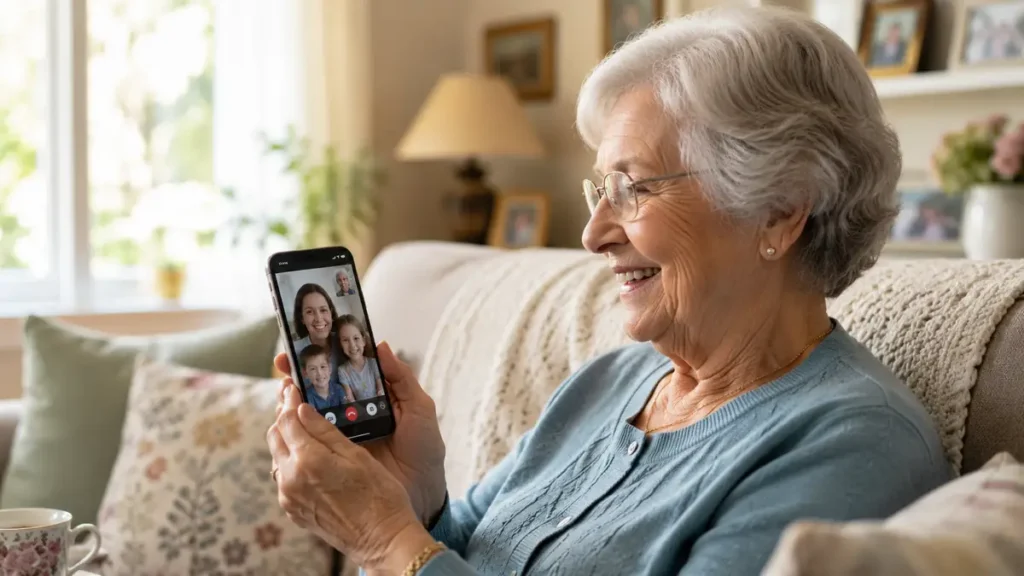
- FaceTime Video Calls: Connect with children and grandchildren in high-definition video with a single tap, making it easy to stay in touch without complicated logins.
📖 ALSO READ: How to Get Cheap Internet for Seniors on a Fixed Income (5 Real Programs)
How to Stay Safe from Scams and Spam Texts
Learning how to protect your personal information is an essential part of digital confidence. Keep these basic security habits in mind:
- Silence Unknown Callers: Enable this in Settings > Phone > Silence Unknown Callers to automatically send unfamiliar phone numbers to voicemail while allowing your saved contacts to ring normally.
- Recognize Phishing Links: Financial institutions, the IRS, and Social Security will never send text messages demanding immediate payments, gift card codes, or password resets. Avoid clicking links inside unexpected messages.
- Keep Your Operating System Updated: Regularly install official iOS updates (Settings > General > Software Update) to make sure your device has the latest security fixes.
Final Thoughts
Gaining confidence on an iPhone or iPad does not require technical expertise—just patient instruction and a little practice.
My practical advice: Don’t try to master everything in a single weekend. Pick just one practical feature each week—like learning FaceTime or setting up your Medical ID—and practice it. Take advantage of free Today at Apple store workshops, participate in a Senior Planet virtual session from home, or visit your neighborhood public library. With a little patience, your device will quickly become an everyday helper rather than a source of stress.
Official Resources
- Apple Official: Today at Apple Calendar and Booking
- Apple Support: iPhone and iPad Accessibility User Guide
- Senior Planet from AARP: Free Online Tech Courses & Resource Center
- National Resource Center for Osher Institutes: OLLI National Directory
Disclaimer: Program schedules, availability, and class formats vary by location and provider. Always check official event calendars or contact local branches directly before attending.
Educational only — not medical, legal, or financial advice. Talk to a qualified professional before changing exercise, diet, medication, or making a major purchase. After60Guide is not a medical practice.




Gaurav Sharma is the founder and lead writer of After60Guide. He writes practical, source-cited guides on movement, nutrition, home safety, and everyday living after 60. He is not a doctor, physical therapist, or financial adviser. Health and money articles are general education, checked against official public sources where relevant — not personal advice. Corrections: contact@after60guide.com